You posted a photo on Instagram and it came back with an "AI info" tag. Maybe you only removed a stray cable with Photoshop's Generative Fill, cut out the background in Canva, or tapped an AI eraser on your phone. The photo is real, but Instagram now tells your followers that AI was involved.
Usually the tag comes from hidden metadata in the file, not from Instagram studying your pixels. Editing tools write AI disclosure records such as C2PA Content Credentials or an IPTC "AI source" field into the image, and Meta reads them at upload. This guide shows how to find out what triggered your tag, what you can do about a post that is already live, and how to remove that metadata before your next upload. Removing it takes away the most common trigger; it does not guarantee Instagram will never add a label, because Meta can use other signals too.
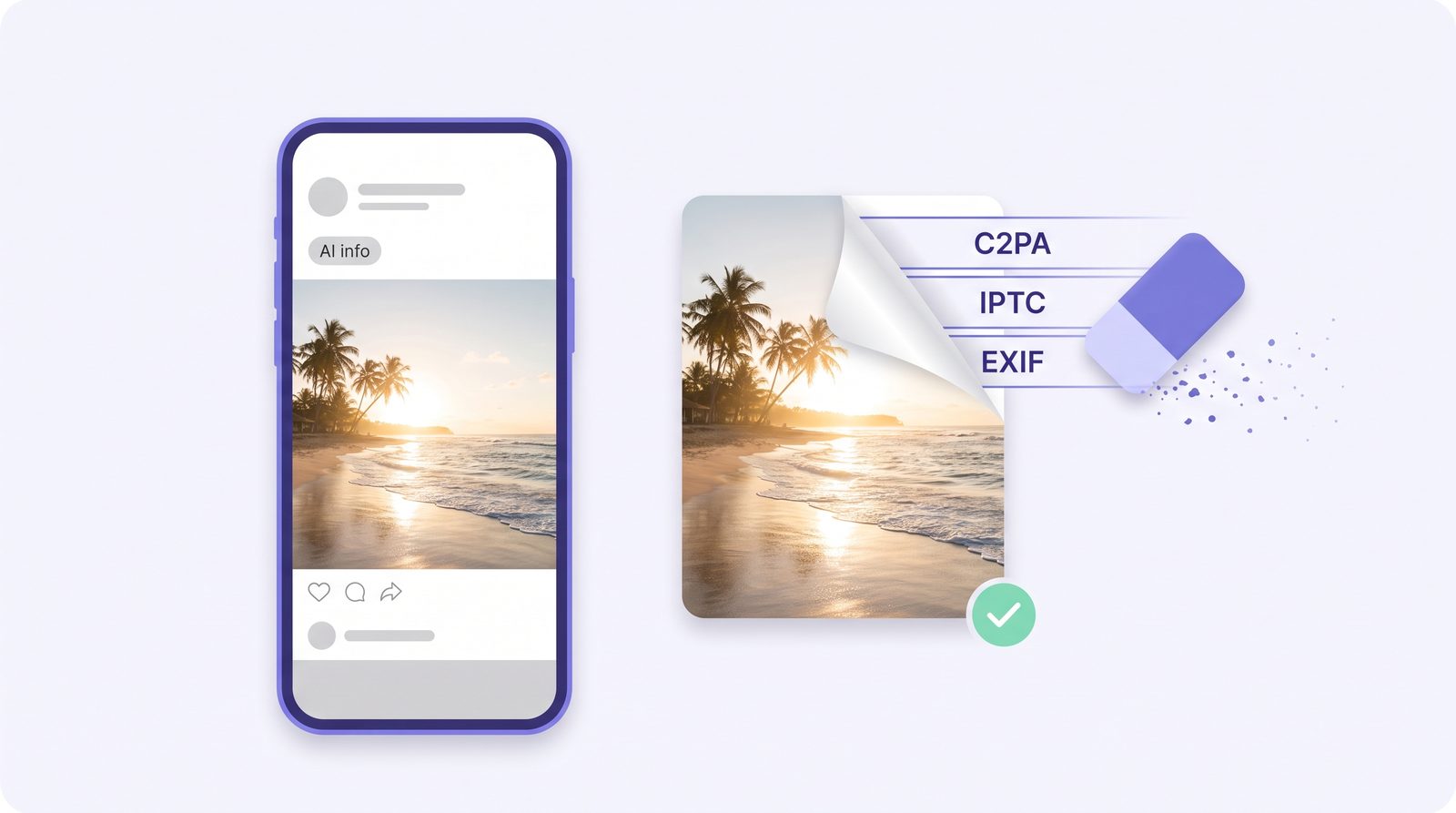
What the "AI Tag" on Instagram Actually Is
Instagram does not call it an "AI tag". The label shown on posts is "AI info". It replaced the original "Made with AI" label in July 2024, after photographers complained that lightly retouched photos were being described as AI-made.
Where you see it depends on how much AI Meta thinks was used:
- Content Meta detects as AI-generated: "AI info" appears on the post itself, under your username.
- Content edited or modified with AI tools: since September 2024 the label sits in the post's ⋯ menu instead, so it is less visible but still there.
When someone opens the label, Instagram says whether it was added because of industry-shared signals in the file or because the poster disclosed AI use. That detail tells you which fix applies to you.
Not the same as the "AI-generated profile" label. On August 31, 2026, Instagram renamed its account-level "AI creator" label to "AI-generated profile" and said it will limit the reach of profiles that feature an AI-generated person without it. That label belongs to the account, not to a file, so removing metadata has nothing to do with it. Creators who only use AI tools in their workflow do not need it.
Why Instagram Tags Real Photos as AI
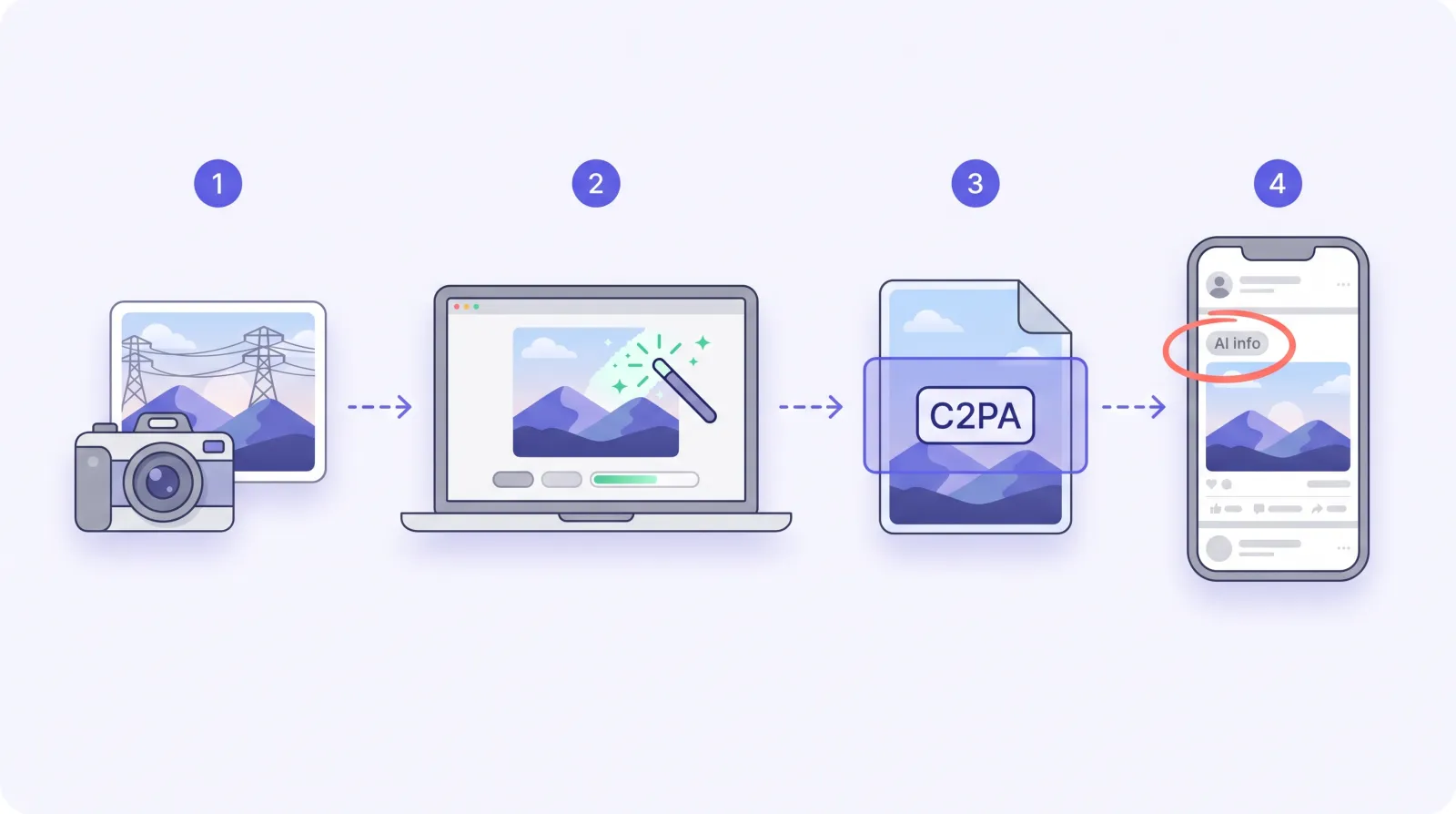
Meta has said it reads the industry standards C2PA and IPTC to spot AI images. Many everyday tools now write those records automatically:
| Where your photo passed through | What it can leave in the file | Removable? |
|---|---|---|
| Photoshop Generative Fill, Remove tool, Firefly | C2PA Content Credentials listing the generative AI step | Yes, it is metadata |
| ChatGPT / DALL-E, Microsoft Designer | A C2PA manifest that names the generator | Yes, it is metadata |
| Canva and other AI background removers or editors | AI disclosure metadata, depending on the tool and export | Yes, if it is metadata |
| Phone AI edits (e.g. Galaxy AI, Google Photos) | IPTC/XMP "edited with AI" fields; some edits also add an invisible watermark | Metadata yes, watermark no |
| Google's AI image models (Gemini, Imagen) | A SynthID watermark woven into the pixels | No, it is not metadata |
| Meta AI images made inside Instagram or Facebook | Meta's own markers, plus Meta already knows it made the image | No, Meta labels it either way |
The first rows are the usual reason a real photo gets tagged: the AI record describes one small edit, but the label lands on the whole post.
Step 1: Check Why Your Post Was Tagged
Open the post and tap AI info under your username. If you do not see it there, tap ⋯ in the top-right corner of the post and look for AI info in the menu. Read the explanation:
- "Industry-shared signals" means Instagram found AI metadata or a watermark in the file. Go to Step 2.
- Self-disclosed means the Add AI label toggle was switched on when the post was shared. If you turned it on by mistake and the image is not AI-generated, check whether the post's Edit screen lets you turn it off. If it does not, repost without the label.
Step 2: Fix a Post That Is Already Live
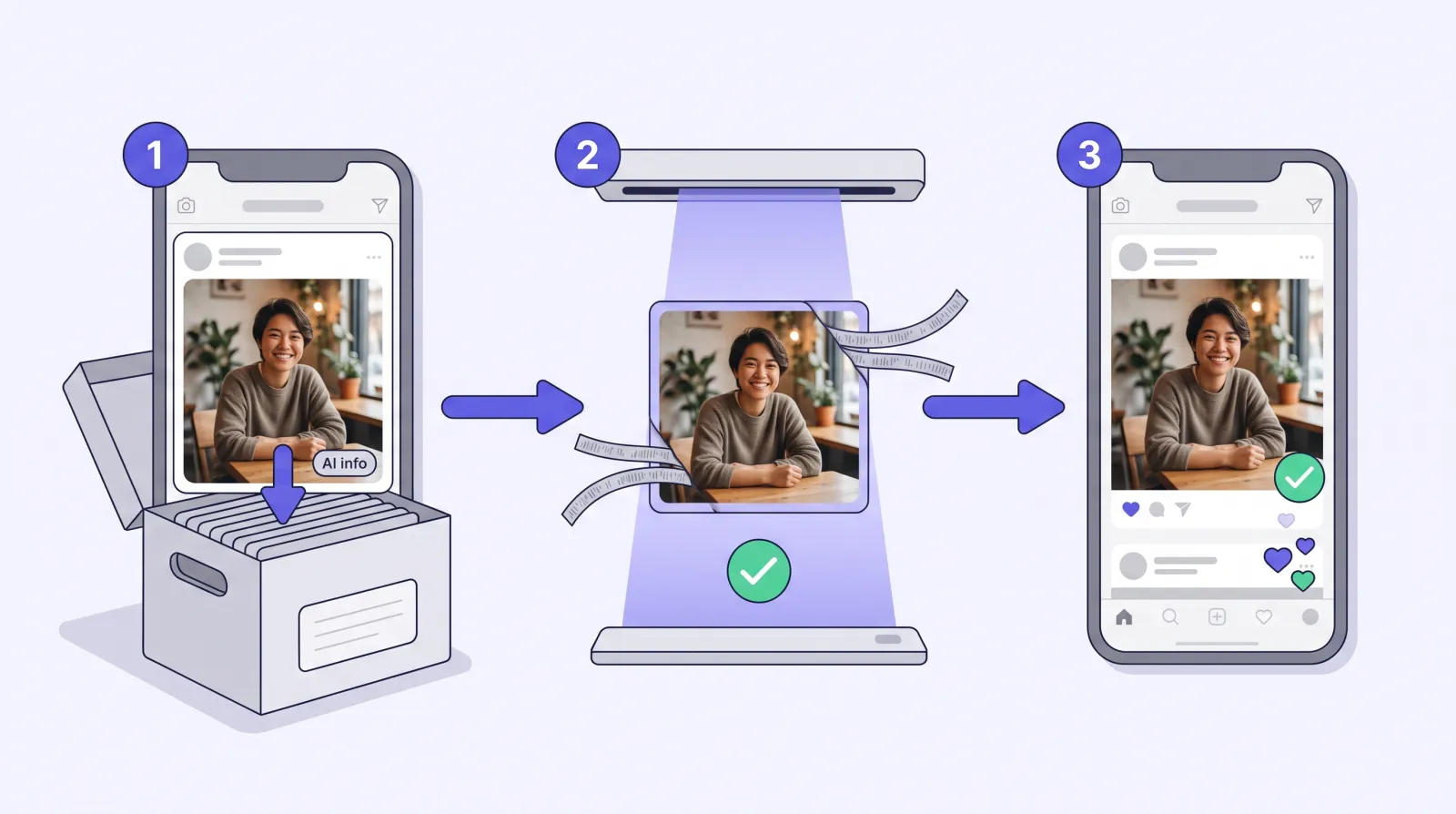
Instagram has no button for removing a label that came from detected signals, and editing the caption does not change the image file Meta already processed. The practical route is to replace the image:
- Archive the tagged post (⋯ → Archive) instead of deleting it, so you keep its likes and comments and can restore it later. Delete it if you prefer.
- Clean the original file with the method below. Use the original, not a copy saved back from Instagram.
- Post the cleaned file as a new post.
If you are sure the image is a real photo and the tag still appears, tell Instagram through Settings and activity → Help → Report a problem, or shake your phone in the app. There is no guaranteed outcome, but mislabels are the kind of feedback Meta changed its labels for in 2024.
Step 3: Remove the AI Metadata Before You Post
Method 1: Remove AI Metadata in your phone or desktop browser (recommended)
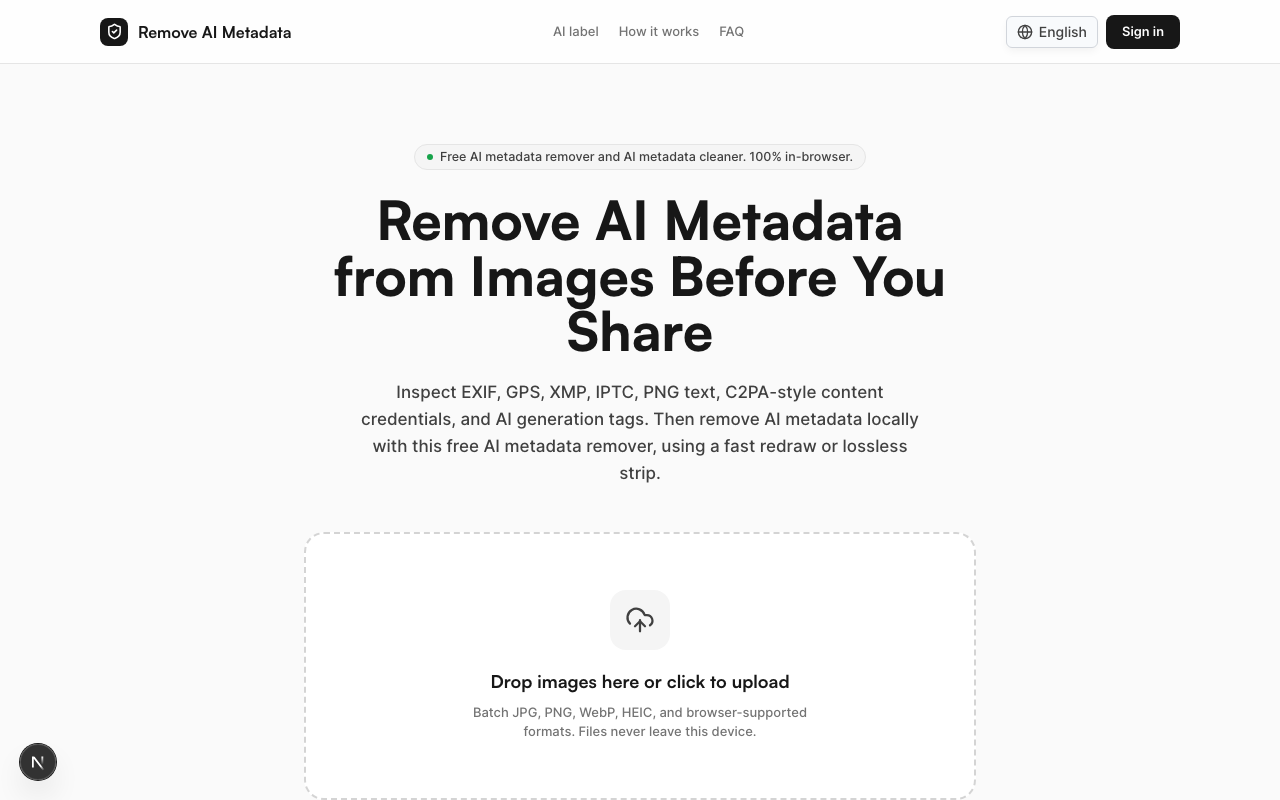
Instagram is a phone app, so you need something that works on your phone without installing anything. Remove AI Metadata runs in Safari or Chrome on iPhone and Android, and in any desktop browser:
- Open removeaimetadata.com and add your photo (JPG, PNG, WebP or HEIC, up to 50 MB).
- The scan lists what the file contains: C2PA Content Credentials, IPTC and XMP AI fields, EXIF, GPS location and PNG text.
- Pick a mode and tap Remove metadata:
- Redraw re-encodes the pixels into a new JPEG, PNG, WebP or AVIF file with no stored metadata. Its fingerprint disruption setting (on by default, adjustable or off) adds an invisible micro-shift so the output's pixels and hashes no longer match the original exactly.
- Lossless (PNG and JPEG) removes only the metadata containers and keeps every pixel identical.
- Check the rescan result, download the file, save it to Photos and post it on Instagram.
Your photo never leaves your device: scanning and cleaning happen in the browser, and only the number of cleaned images is sent to count credits. The first 2 images are free without an account, and a free account adds 2 more credits. After that each cleaned image uses 1 credit, and a Credit Pack or Pro plan cleans up to 50 images at once, which helps for carousels.
Neither mode removes invisible pixel watermarks such as Google's SynthID.
Method 2: Export without metadata in Photoshop
If you edit in Photoshop, export with File → Export → Save for Web (Legacy) and set Metadata to None. Photographers often use this to drop the AI record from Generative Fill edits. It does not work for files that have already left Photoshop, and the regular export dialogs can keep Content Credentials, so scan the result before posting.
Method 3: Screenshot the photo
Open the edited photo full screen, take a screenshot, crop it and post the screenshot. The screenshot is a new file without the original's metadata.
Downsides: you lose resolution, the crop is rarely exact, and an invisible pixel watermark can survive a screenshot.
Method 4: Avoid AI edits for the photos you want unlabeled
Clone Stamp, the non-generative healing brushes and manual masking do not write AI disclosure records. Basic adjustments such as exposure, curves, color and crop never do. This is the most reliable approach, but you give up the tools that save the most time.
Which Method Should You Use?
| Method | Works on phone | Quality loss | Removes C2PA / IPTC AI records | Removes SynthID |
|---|---|---|---|---|
| Remove AI Metadata | Yes | None in Lossless | Yes, verified by a rescan | No |
| Photoshop Save for Web | No | Small (re-export) | Usually | No |
| Screenshot | Yes | Yes, resolution | Yes | Not reliably |
| Avoid AI edits | Yes | None | Nothing is written | Not applicable |
None of these can promise that Instagram will never show a label. Meta can also use invisible watermarks, its own detection and your disclosure.
When You Should Keep the Label
The goal here is to stop real photos from being described as AI-made, not to hide AI images. If an image was generated with AI, or AI changed what it shows, keeping the label is the honest choice, and Meta's rules require you to disclose photorealistic video and realistic audio that was digitally created or altered. If your account features an AI-generated person, add the "AI-generated profile" label; hiding it can cost you reach.
How to Check a Photo Before Posting
- Remove AI Metadata shows every detected record during the scan, before you clean anything.
- contentcredentials.org/verify shows whether a file carries C2PA Content Credentials.
- ExifTool on a computer:
exiftool -a -G1 photo.jpglists all metadata groups, including XMP and JUMBF.
Frequently Asked Questions
Can I remove the AI info label from a post that is already published? Not with a setting, if it came from detected signals. Archive or delete the post, clean the original file and post it again. If the label came from your own disclosure, check whether the post's Edit screen lets you switch it off.
Does the AI info tag reduce my reach on Instagram? Meta has not said that the per-post "AI info" label lowers distribution. The reach limit announced on August 31, 2026 is for profiles that feature an AI-generated person without the "AI-generated profile" label.
Why did Instagram tag a photo straight from my camera? Usually because of an edit made afterwards, such as an AI eraser, background removal or generative fill, which wrote an AI record into the file. Scan the file to see which tool left it.
Does this work for carousels, Stories and Reels? Carousels and Stories use the same image signals, so clean each photo before you upload it. Remove AI Metadata handles still images only; it does not process video, so it cannot help with Reels.
Does Threads use the same label? Yes. Threads, Instagram and Facebook are all Meta apps and read the same signals. See our guide to the Facebook "AI Info" label.
Is it allowed to remove AI metadata from my photos? You can edit the metadata of your own files. Follow Instagram's rules, including its disclosure requirements for AI-generated content. Remove AI Metadata is a privacy and metadata tool, not a way to pass AI images off as real.
Post Your Real Photos Without a Wrong AI Tag
Scan your photo before it goes on Instagram, see exactly which AI records it carries and remove them in your browser. Try Remove AI Metadata: the first 2 images are free, no account needed, and nothing is uploaded.