You edited a photo in Photoshop, posted it on Facebook, and now it says "AI Info" underneath. You didn't generate the image with AI — you just used a healing brush or generative fill on a small area. Yet Facebook treats the entire photo as AI content.
This often happens because editing tools embed hidden metadata (such as C2PA Content Credentials or an IPTC AI tag) that Meta reads when you upload. The good news: you can remove that metadata before posting, which removes the signal that most often triggers the label. Platforms can also use other signals, so it is not a guarantee.
Why Does Facebook Add the "AI Info" Label?
Facebook (Meta) began labeling AI content in 2024. Meta has said it reads industry-standard signals such as C2PA and IPTC metadata, and for edited photos this metadata embedded in your image file is a common reason the label appears. It is not the only signal: invisible watermarks, Meta's own detection, and self-disclosure when posting can also lead to a label.
Three common signals can be involved:
| Detection Method | What It Reads | Can You Remove It? |
|---|---|---|
| C2PA manifest | A digital signature from tools like Adobe Photoshop, Microsoft Designer, or Google's AI tools | Yes — strip the metadata |
| IPTC digitalSourceType | A standard field set to trainedAlgorithmicMedia | Yes — strip the metadata |
| Invisible watermark (e.g. Google SynthID) | A signal baked into the pixels themselves | No — it is in the pixels, not metadata |
The first two signals are metadata-based. If you remove them, Facebook no longer has a metadata signal to read, but an invisible watermark, Meta's own detection, or a self-disclosure can still lead to a label.
Important distinction: the "AI Info" label (formerly "Made with AI") tells viewers the image used AI tools. This is separate from Meta's AI training policy, which controls whether your posts are used to train Meta's AI models.
5 Ways to Remove the AI Label
Method 1: Strip Metadata with Remove AI Metadata (Recommended)
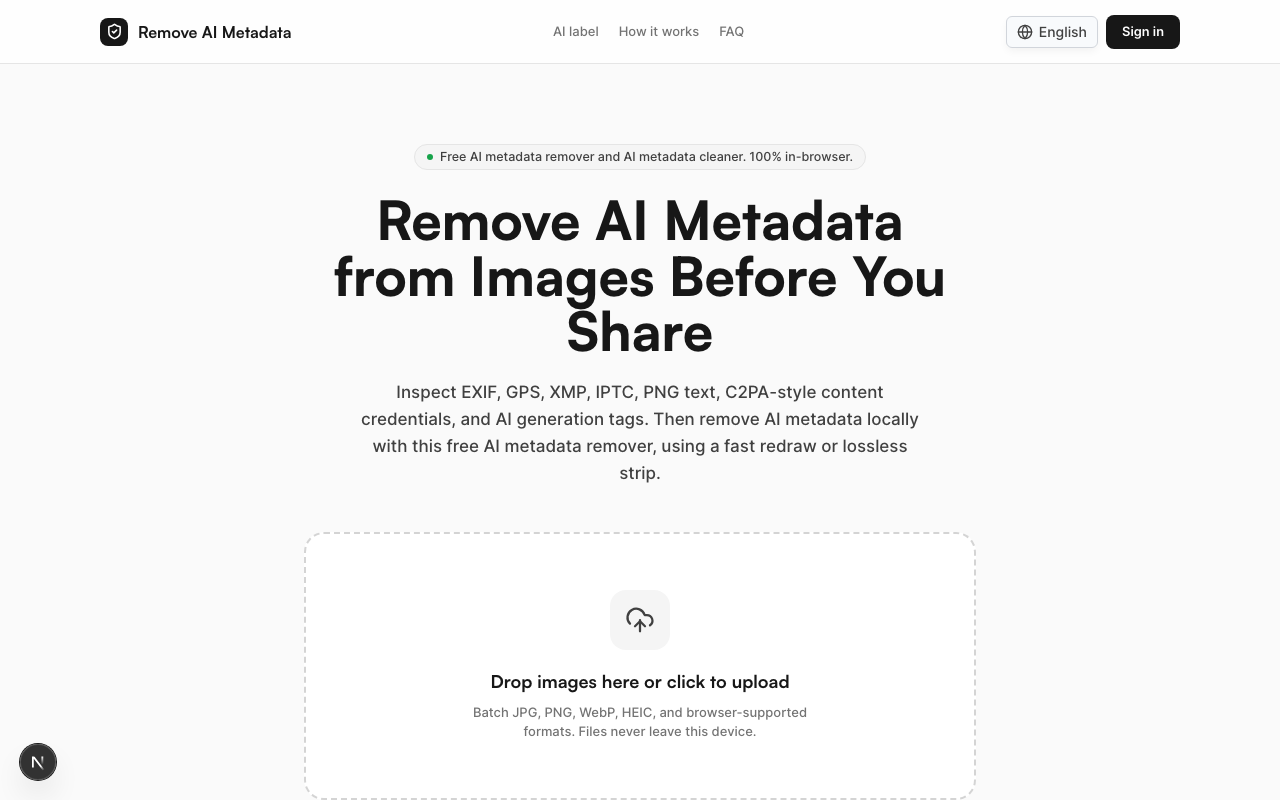
The fastest and most thorough way to strip the metadata. Remove AI Metadata is a browser-based tool (your first 2 images are free) that specifically targets AI-related metadata — C2PA, IPTC, EXIF, PNG text chunks, and XMP tags.
How to use it:
- Go to removeaimetadata.com
- Drop your image into the drop zone (up to 50 MB — nothing is uploaded; one image per run on free credits, up to 50 with a Credit Pack or Pro)
- The tool scans and shows all detected AI metadata
- Choose a mode, click Remove metadata, then download — your cleaned image is ready to post
Why it helps: Unlike generic EXIF strippers, this tool also looks for AI-specific fields such as C2PA Content Credentials, the IPTC digitalSourceType value, and prompts stored in PNG text chunks. It offers two modes:
- Redraw mode — re-encodes the pixels into a new JPEG, PNG, WebP or AVIF file with no stored metadata; its optional fingerprint disruption setting (on by default) adds a tiny rotation/scale and low-frequency noise so the output's pixels and hashes differ slightly from the original
- Lossless strip mode (PNG and JPEG) — removes only metadata containers while keeping pixel data identical
Your files never leave your browser — everything runs locally. Neither mode removes invisible pixel watermarks such as SynthID.
Method 2: Screenshot Workaround
A low-tech approach that many users rely on:
- Open your edited image at full size on screen
- Take a screenshot
- Crop the screenshot to match your image
- Upload the screenshot to Facebook
Pros: Simple, no tools needed. Cons: You lose resolution and quality. Not ideal for professional photography.
Method 3: Convert File Format
Converting your image between formats can strip metadata:
- Open the image in a basic editor (Preview on Mac, Paint on Windows)
- Save as a different format (e.g., PNG → JPG, or JPG → PNG)
- Upload the converted file
Some compression tools like TinyJPG also strip metadata during processing.
Cons: May introduce compression artifacts. Does not always remove all metadata types.
Method 4: Delete and Re-upload
If you already posted and the label appeared:
- Delete the original post
- Strip the metadata using Method 1
- Upload the cleaned image as a new post
Editing an existing post does not change the image file Facebook already processed, so re-posting a cleaned file is the practical route. The new post can still be labeled if Meta picks up another signal.
Method 5: Avoid AI-Powered Edit Tools
Prevention is the simplest approach:
- Use clone stamp or healing brush (legacy) instead of generative fill
- Skip AI-enhanced features like AI noise reduction (Topaz, Luminar)
- Use basic adjustments only: brightness, contrast, curves, crop
- Export with legacy options in Photoshop
Cons: Limits your creative toolkit significantly.
Quick Comparison: Which Method Should You Use?
| Method | Ease | Quality Loss | Reliability | Cost |
|---|---|---|---|---|
| Remove AI Metadata | Very easy | None (lossless mode) | High | 2 images free, then 1 credit each |
| Screenshot | Easy | Yes — resolution loss | Medium | Free |
| Format conversion | Moderate | Possible artifacts | Low–Medium | Free |
| Delete & re-upload | Annoying | None (with metadata strip) | High | Free |
| Avoid AI tools | N/A | None | High | Limits creativity |
Reliability here means how consistently each method removes or avoids stored AI metadata. None of them can guarantee that Facebook will not show a label, because Meta can also use invisible watermarks, its own detection, or self-disclosure.
How to Check If Your Image Has AI Metadata
Before uploading to Facebook, you can verify whether your image carries AI flags:
- Use Remove AI Metadata — the scan step shows all detected metadata before you clean
- Check at contentcredentials.org/verify — upload your image to see if it has C2PA content credentials
- Use ExifTool (command line) — run
exiftool -all yourimage.jpgand look for AI-related fields
Frequently Asked Questions
Will removing metadata guarantee the label disappears? No. Removing C2PA, IPTC, and EXIF metadata removes the most common metadata triggers, but it is not a guarantee. If your image has an invisible watermark (like Google SynthID), that signal is in the pixels, and Remove AI Metadata does not remove it in either mode. Meta can also use its own detection or your own AI disclosure.
Does this work for Instagram too? Yes, with the same limits. Instagram and Facebook are both Meta platforms, and a cleaned file carries no AI metadata wherever you post it. Meta can still use other signals on either platform, so it is not a guarantee.
Is it legal to remove AI metadata? You have the right to modify metadata in your own files. Remove AI Metadata is a privacy tool. Always follow the terms of service of any platform you upload to, including any rules about disclosing AI-generated content.
What about videos and Reels? AI labels on videos work differently. Remove AI Metadata works on still images only (JPG, PNG, WebP, HEIC) and does not process video files. Video labels may also rely on other signals, including self-disclosure.
Can Facebook detect AI images without metadata? Potentially, yes. Meta has said it reads industry-standard signals such as C2PA and IPTC metadata, but a label can also come from invisible watermarks, Meta's own detection, or self-disclosure. Removing metadata removes one common signal; it does not make an image undetectable.
Start Posting Without Hidden AI Metadata
Clear the hidden AI metadata from your photos before you post. Try Remove AI Metadata now — your first 2 images are free without an account, it runs in your browser without uploading your images, and it typically takes a few seconds per image.